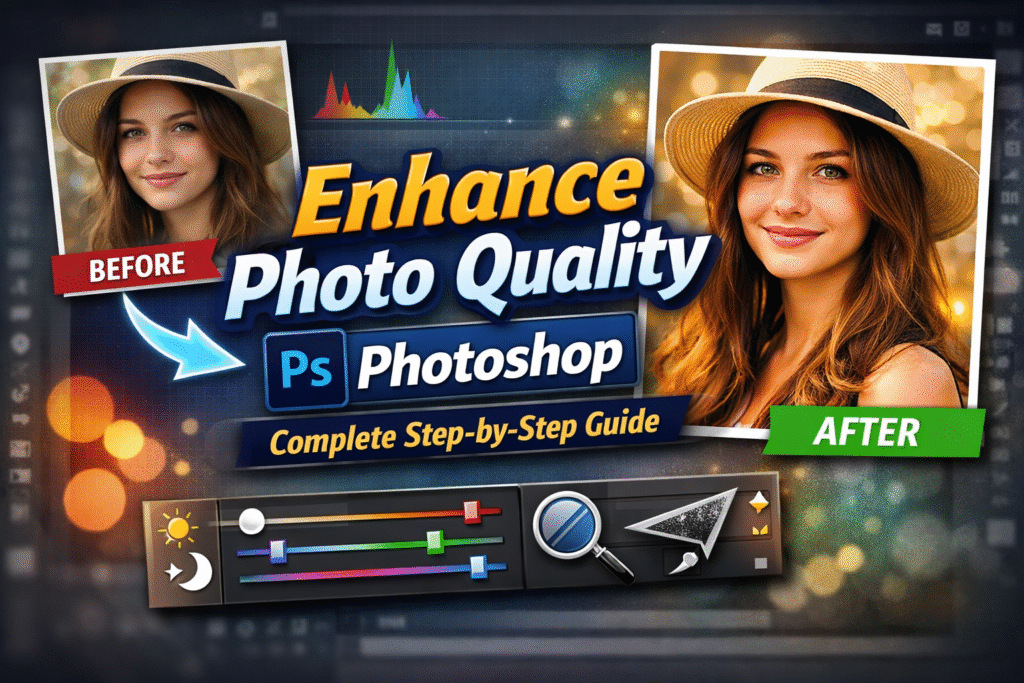
Enhance Photo Quality with Photoshop: Complete Step-by-Step Guide
Discover how to enhance photo quality with Photoshop and transform ordinary images into stunning visuals. This detailed guide covers everything from basic adjustments like brightness and contrast to advanced techniques including color balance, sharpening, and noise reduction.
Why Enhancing Photo Quality Matters
In today’s digital age, high-quality photos are essential for personal memories, business marketing, and social media engagement. Poorly captured images can suffer from issues such as incorrect color balance, low sharpness, noise, or improper lighting. By using tools like Adobe Photoshop, you can correct these problems and elevate your photos to professional standards.
Whether you are editing personal photos or optimizing visuals for your website, learning how to enhance photo quality with Photoshop is an invaluable skill.
Step 1: Import the Image into Photoshop
Start by opening Adobe Photoshop and importing the image you want to edit. You can do this by navigating to File > Open or simply dragging your image into the Photoshop workspace. Make sure to work on a duplicate layer to preserve the original image.
Step 2: Adjust Color Balance
Color balance is crucial for correcting color imperfections and creating visually appealing images. You can also use it creatively to produce unique effects.
How to Apply Color Balance in Photoshop
- Go to the Adjustments panel and click on the Color Balance icon.
- Select a tone balance option: Shadows, Midtones, or Highlights.
- Adjust the Cyan, Magenta, and Yellow sliders to achieve the desired effect.
- Rename the adjustment layer for easy reference.
Tip: Combining subtle changes in color balance with other adjustments can dramatically improve the overall look of your image.
Step 3: Improve Brightness and Contrast
Proper lighting is essential for high-quality images. Adjusting brightness and contrast can help correct underexposed or overexposed photos, as well as make your images more vibrant.
Steps to Adjust Brightness & Contrast
- Go to Image > Adjustments > Brightness/Contrast.
- Move the sliders to adjust brightness and contrast levels.
- Click OK to apply the changes.
Remember, too much contrast can make photos look unnatural, while too little can make them appear flat. Always preview your adjustments to maintain balance.
Step 4: Sharpen the Image
Blurry images can reduce the quality and professionalism of your photos. Photoshop’s sharpening tools help bring out fine details and enhance overall clarity.
Sharpening Process in Photoshop
- Duplicate the background layer by right-clicking on it and selecting Duplicate Layer.
- Set the blend mode to Luminosity to prevent color distortion.
- Go to Filter > Sharpen > Unsharp Mask.
- Adjust the Amount, Radius, and Threshold sliders until the image appears sharp and detailed.
Tip: Sharpening is especially useful for landscapes, portraits, and product photography to highlight textures and edges.
Step 5: Reduce Noise in Your Photos
Noise can degrade image quality, especially in low-light photos. Use Photoshop’s Reduce Noise filter to smooth out grainy areas while preserving details.
How to Reduce Noise
- Go to Filter > Noise > Reduce Noise.
- Adjust the sliders for strength, preserve details, and reduce color noise.
- Click OK to apply changes.
Tip: Always check the image at 100% zoom to ensure noise reduction doesn’t blur essential details.
Step 6: Crop and Resize for Better Composition
Cropping allows you to improve composition and remove unwanted elements, while resizing ensures your image is optimized for web or print use.
Crop & Resize in Photoshop
- Select the Crop Tool from the toolbar.
- Drag the edges to frame your subject perfectly.
- To resize, go to Image > Image Size and adjust width, height, and resolution.
Tip: Keep the aspect ratio consistent to avoid distorted images.
Additional Tips to Enhance Photos
- Use Curves and Levels for precise control over shadows and highlights.
- Apply Vibrance and Saturation adjustments for richer colors.
- Experiment with Filters to create unique effects and textures.
- Always save a PSD copy of your edited photo for future tweaks.
Conclusion
By following these steps, you can effectively enhance photo quality with Photoshop and make your images more engaging and professional. Adjusting color balance, brightness, contrast, sharpness, noise, and cropping ensures your photos stand out in digital platforms, portfolios, or personal albums.
Practice regularly and experiment with different tools to develop your unique editing style.
FAQ
1. How to Fix Bad Lighting in a Photo?
Adjust brightness, contrast, and exposure in Photoshop to fix bad lighting. Using the Curves tool can also enhance the balance between shadows and highlights.
2. How to Fix Pixelated Images?
Pixelation often occurs due to resizing, compression, or camera settings. Using Photoshop’s Smart Sharpen and resizing images carefully can help reduce pixelation.
3. How to Reduce Noise in Photos?
Noise is caused by high ISO, small sensors, or low-light conditions. Use the Reduce Noise filter in Photoshop, along with proper exposure adjustments, to minimize noise effectively.
Related Resources