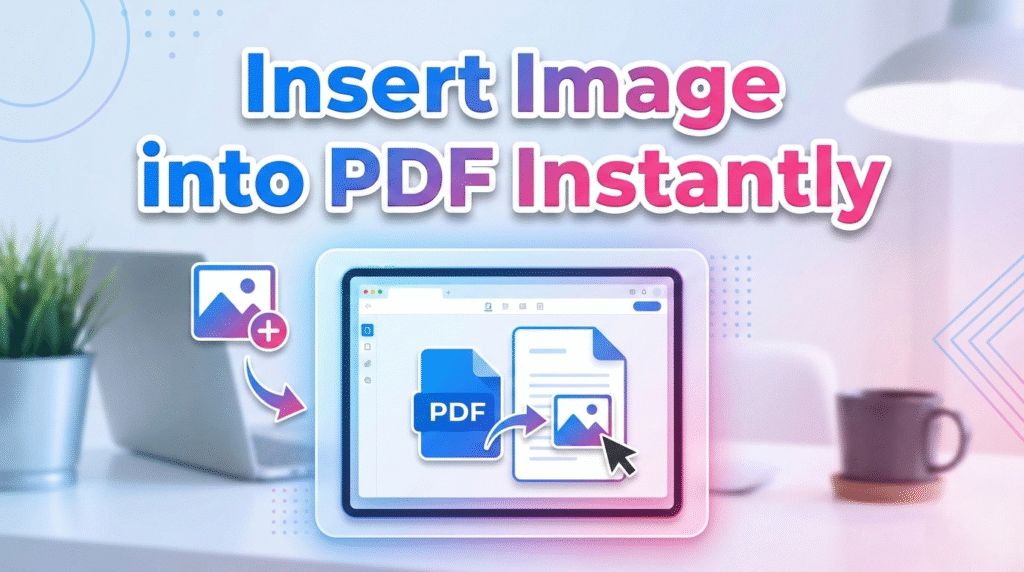
How to Insert an Image into a PDF (Complete Step-by-Step Guide)
Adding visuals to your documents has never been easier. Whether you are filling out forms, submitting official files, or preparing professional reports, knowing how to insert an image into a PDF can save you time and effort. With modern PDF editors, you can add photos, logos, or certificates directly without printing or rescanning. Online tools allow you to import images from your computer or cloud storage and position them perfectly in your PDF. This process ensures your documents remain professional, clean, and fully digital. Learning this skill helps streamline workflows, improve presentation, and maintain the integrity of important files.
Digital paperwork has become part of everyday life in the USA. From school assignments and job applications to government forms and business contracts, PDFs are everywhere. One common challenge many people face is figuring out how to insert an image into a PDF without printing, scanning, or using complicated software.
If you have ever needed to add a photo ID, signature, logo, or supporting image to an existing PDF, you are not alone. The good news is that modern tools make this task simple, fast, and affordable. This guide explains everything in clear, easy English so you can confidently work with PDFs on any device.
#1: Why You May Need to Insert an Image into a PDF
In many real-world situations, documents require visual proof. Online applications often ask for scanned IDs, passport photos, certificates, or signed pages. When you insert an image into a PDF, you attach that proof directly inside the document without changing its structure or layout.
Another major reason is efficiency. Printing and rescanning wastes time, paper, and ink. Digital editing keeps file quality high and ensures your PDF looks professional. Schools, employers, and U.S. government agencies prefer clean, well-formatted PDFs because they are easy to review and archive.
#2: What You Need to Add an Image to a PDF
To insert an image into a PDF, you need a PDF editor. A PDF editor allows you to modify a PDF after it has been created. You do not need the original Word, Excel, or design file, which saves effort and avoids delays.
There are two main options. An online PDF editor works inside your browser and requires no installation. An offline desktop editor installs on your computer and works without internet access. For most users, online editors are faster and more convenient.
#3: How to Insert an Image into a PDF Using an Online PDF Editor
An online PDF editor is the easiest way to get started. You upload your PDF, select an image from your device, and place it exactly where you want. The entire process happens visually, which makes it beginner-friendly.
Most online editors also support cloud storage. You can import files from Google Drive or Dropbox and then insert an image into a PDF from anywhere. This flexibility supports remote work, mobile editing, and fast collaboration.
#4: Step-by-Step Guide to Add an Image to a PDF
To begin, open your chosen PDF editor and upload your document. Once the file loads, select the add image option from the toolbar. Choose an image from your computer, phone, or cloud storage, then place it on the page.
After positioning the image, resize it by dragging the corners. Make sure it aligns well with surrounding text. Save the document and download the updated file. This simple process ensures your insert image into a PDF task is done correctly.
| Step | Description |
|---|---|
| Upload | Add the PDF file to the editor |
| Insert | Choose and place the image |
| Adjust | Resize and reposition |
| Save | Download the final PDF |
#5: Accepted Image Formats for PDF Editing
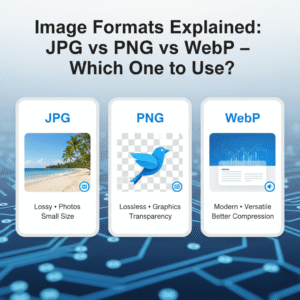
Most PDF editors support common image formats such as JPG, PNG, and GIF. These formats maintain good quality while keeping file size reasonable, which helps PDFs load quickly after you insert an image into a PDF.
If your image is in another format, convert it first. Free image converters can quickly turn files into JPG or PNG. This step prevents compatibility issues and ensures the image displays correctly on all devices.
#6: How to Organize Multiple Images Using Layers
When a document contains several images, layers become important. Layers allow you to control which image appears on top and which stays in the background when you add image to PDF pages with overlapping content.
This feature is useful for stamps, watermarks, signatures, and logos. By adjusting layers, you keep text readable and layouts clean. Organized layers make documents easier to understand and more professional.
#7: How to Rotate and Resize Images Inside a PDF
Images captured on phones or cameras may appear sideways. Rotation tools let you fix orientation instantly after you insert an image into a PDF, keeping everything readable and aligned.
Resizing is just as important. Oversized images can hide text or disrupt layout. Proper resizing ensures images support your content rather than overpower it, which improves overall document clarity.
#8: How to Edit Image Transparency in a PDF
Transparency controls adjust how solid an image appears. Lowering opacity helps when placing logos, stamps, or seals without covering text after you insert an image into a PDF.
This feature enhances design quality. Transparent images work well for watermarks, background graphics, and official branding. Used correctly, transparency adds polish without distracting the reader.
#9: Is It Safe to Insert Images into PDFs Online?
Security is a common concern. Reputable PDF editors use SSL encryption to protect files during upload and editing when you insert an image into a PDF online.
Many platforms also delete files automatically after a short time. Compliance with GDPR and ISO 27001 standards provides extra reassurance for users handling sensitive personal or business documents in the USA.
#10: FAQs About Inserting Images into a PDF
Adding images to PDFs remains essential in 2025 because digital submissions continue to increase. Schools, employers, and government offices still require visual proof inside official files.
You can insert an image into a PDF for free using many tools. Paid versions offer benefits like offline access, larger file limits, and advanced editing features. Mobile apps also make PDF editing possible anywhere.
FAQs About PDFs and Online Tools
Q1: How can I repair a corrupted PDF online?
You can quickly fix broken PDF files using this Free PDF Repair tool. It works directly in your browser without installing software.
Q2: How do I convert a PDF to PowerPoint?
Use PDF to PPT converter to transform your PDF into an editable presentation instantly. No downloads are required.
Q3: Are there free online calculators I can use?
Yes, Free Online Calculator lets you perform basic and advanced calculations directly in your browser for free.
Q4: Where can I find multiple free digital tools in one place?
< a href=”https://quicktoolsbox.online/” target=”_blank”>Quick Tools Box offers free tools for image editing, file conversion, and other utilities online, all in one platform.
Q5: Is it safe to use online PDF tools?
Yes, most trusted online tools use SSL encryption and automatically delete uploaded files, keeping your documents secure and private.
When working with PDFs or online documents, having reliable online tools can save you a lot of time. For quick calculations, Free Online Calculator offers a simple and efficient way to perform mathematical tasks directly in your browser. If you need a variety of digital utilities, Quick Tools Box provides a range of free online tools for file conversion, image editing, and more. Using these resources alongside your own PDF repair or PDF to PPT conversion services ensures a seamless, professional workflow without the need for extra software installations.
Common Mistakes to Avoid When Adding Images to PDFs
Many people rush through editing and end up with misaligned images. Always check spacing and alignment before saving. A poorly placed image can make an otherwise good document look unprofessional.
Another mistake is ignoring file size. Large images increase PDF size and slow downloads. Compress images before you insert an image into a PDF to keep files lightweight and easy to share.
Best Practices for Professional PDF Image Editing
Use high-resolution images so text and details stay clear. Align images with margins and text blocks for a balanced layout. Consistency improves readability and builds trust.
Preview the final PDF on different devices. This step ensures your insert image into a PDF work looks correct on desktops, tablets, and phones before submission.
“A clean, well-structured PDF reflects professionalism and attention to detail.”
— Digital document consultant
Convert PDF to PPT Online – Free PDF to PowerPoint Converter
Final Thoughts
Learning how to insert an image into a PDF is a small skill with big benefits. It saves time, keeps documents professional, and supports modern paperless workflows. With the right tools and careful placement, you can create polished PDFs that meet today’s standards.
Leave a Reply